
How to Send Private Messages on Exantria

Share
Introduction
Private messaging on Exantria is a great way for creators to connect personally with their subscribers. You can send text, photos, videos, and even private messages (VIP content) to earn extra income.
If you want to send a Message (locked content that the user must pay to view) on the Exantria platform, you can easily do so by following these step-by-step instructions.
Step 1: Open the Chat Interface
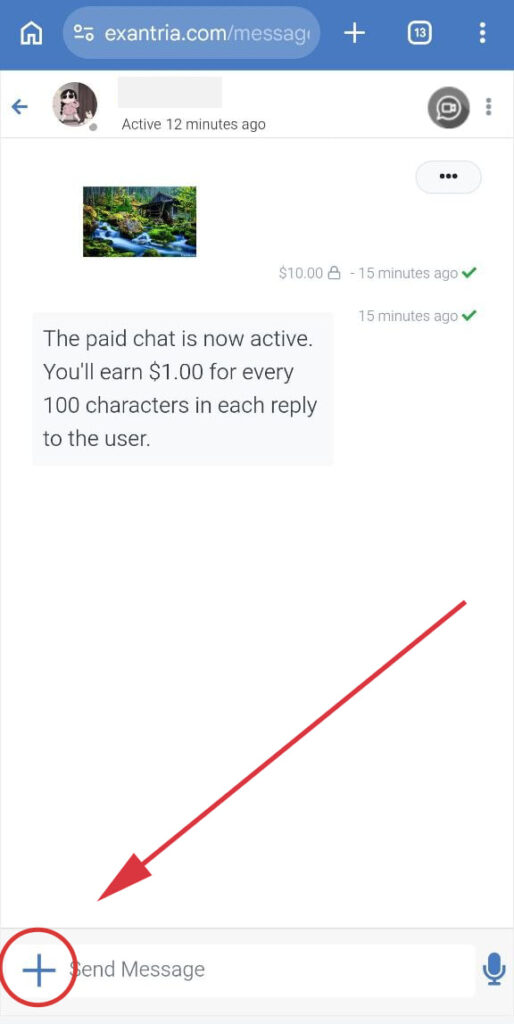
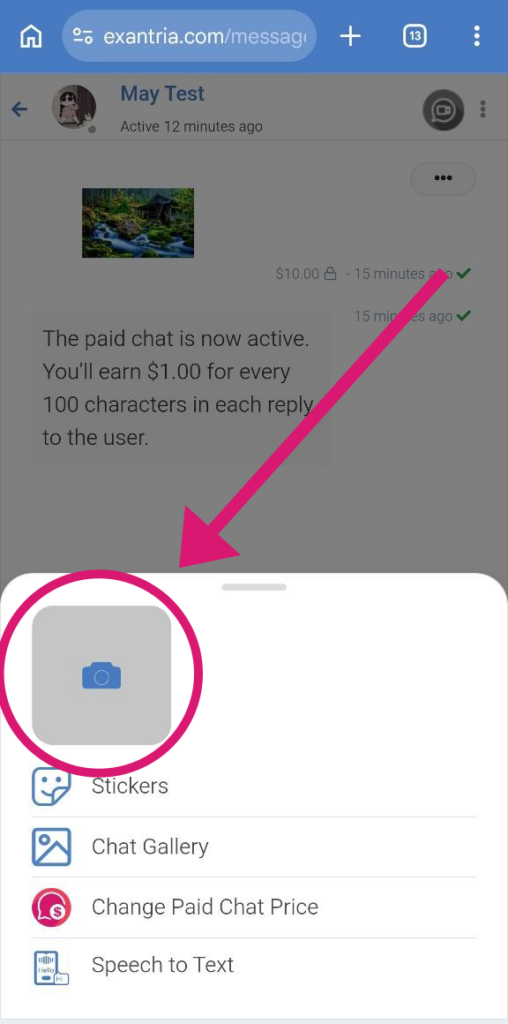
First, Go to the message box of the user who you want to send. Once a chat session becomes active, you will see a notification detailing your earnings per character for replies.
Step 2: Access the Attachment Menu
Tap the + icon located at the bottom left of the chat screen. This will bring up the options menu (featuring options like Stickers, Chat Gallery, Change Chat Price, and Speech to Text). To upload a media file, tap on the camera icon or Chat Gallery.
Step 3: Select Your Media
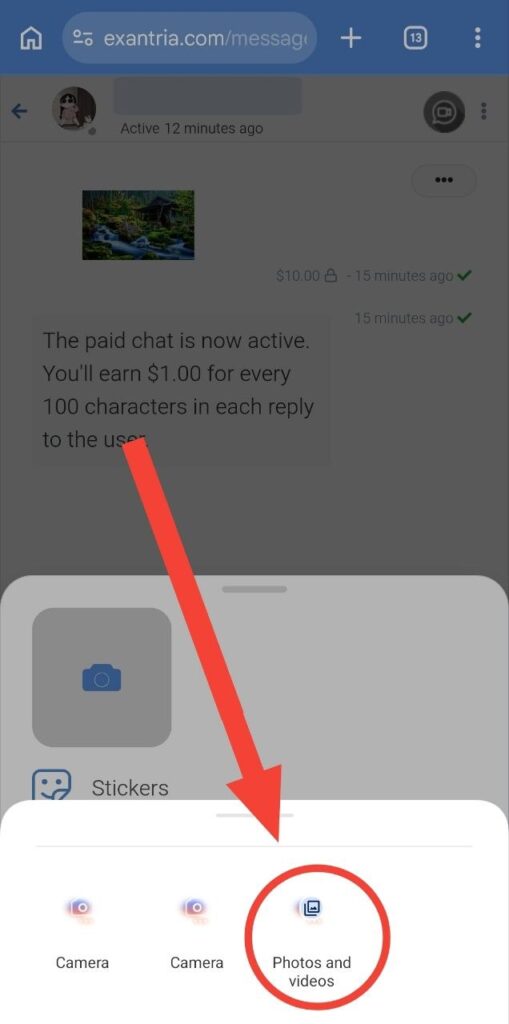
Choose your source from the prompt (Camera or Photos and videos) and then select the specific image or video you wish to send.
Step 4: Set the Message Price
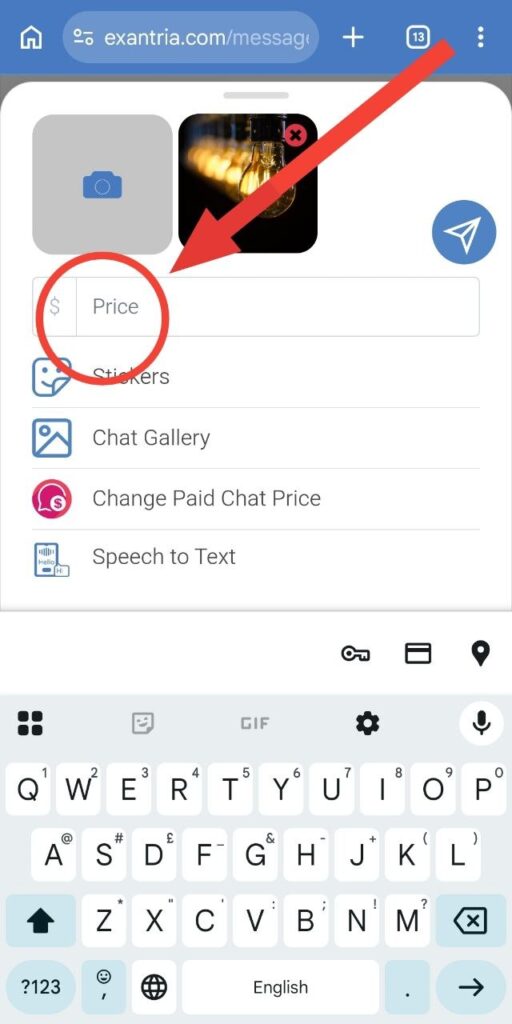
Once the image is selected, a price input field will appear right below the media thumbnail. Type in the exact amount you want to charge the user to unlock this message.
Step 5: Send the Paid Message
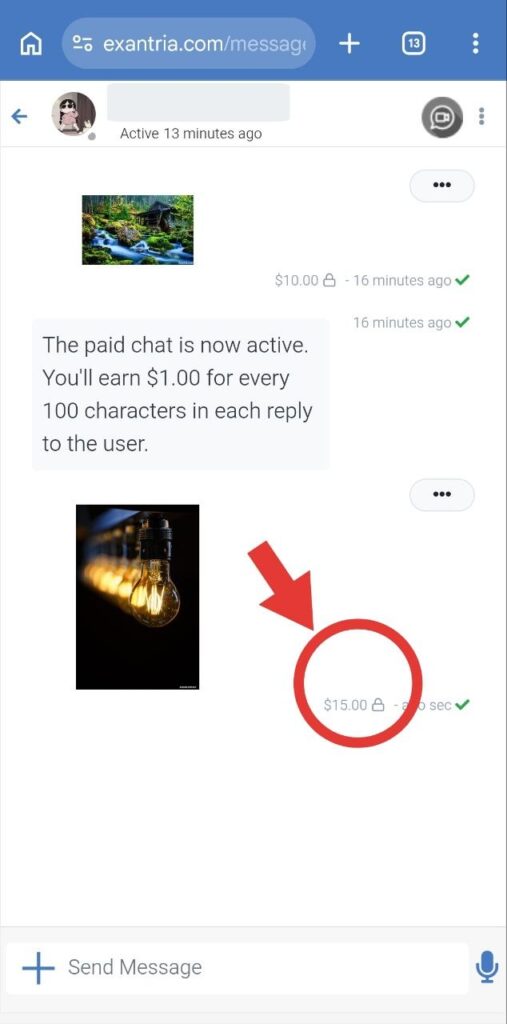
After setting your price, tap the blue Send arrow button. Your message will be delivered securely.The content will remain locked behind the designated price tag until the recipient pays to unlock it.
Important Note: Only subscribers can receive private messages. Non-subscribers cannot be contacted privately.
Extra Tips
Private messages help you earn extra income.
Use high-quality content for better response.